
Change Clothes in a Photo with AI: A Practical Guide
Swap the outfit in any photo with an AI clothes changer — add a person photo and a garment reference, preview the look, and download the result. No Photoshop session or masking required.
AI Clothes Changer Editorial Team · Updated October 14, 2026
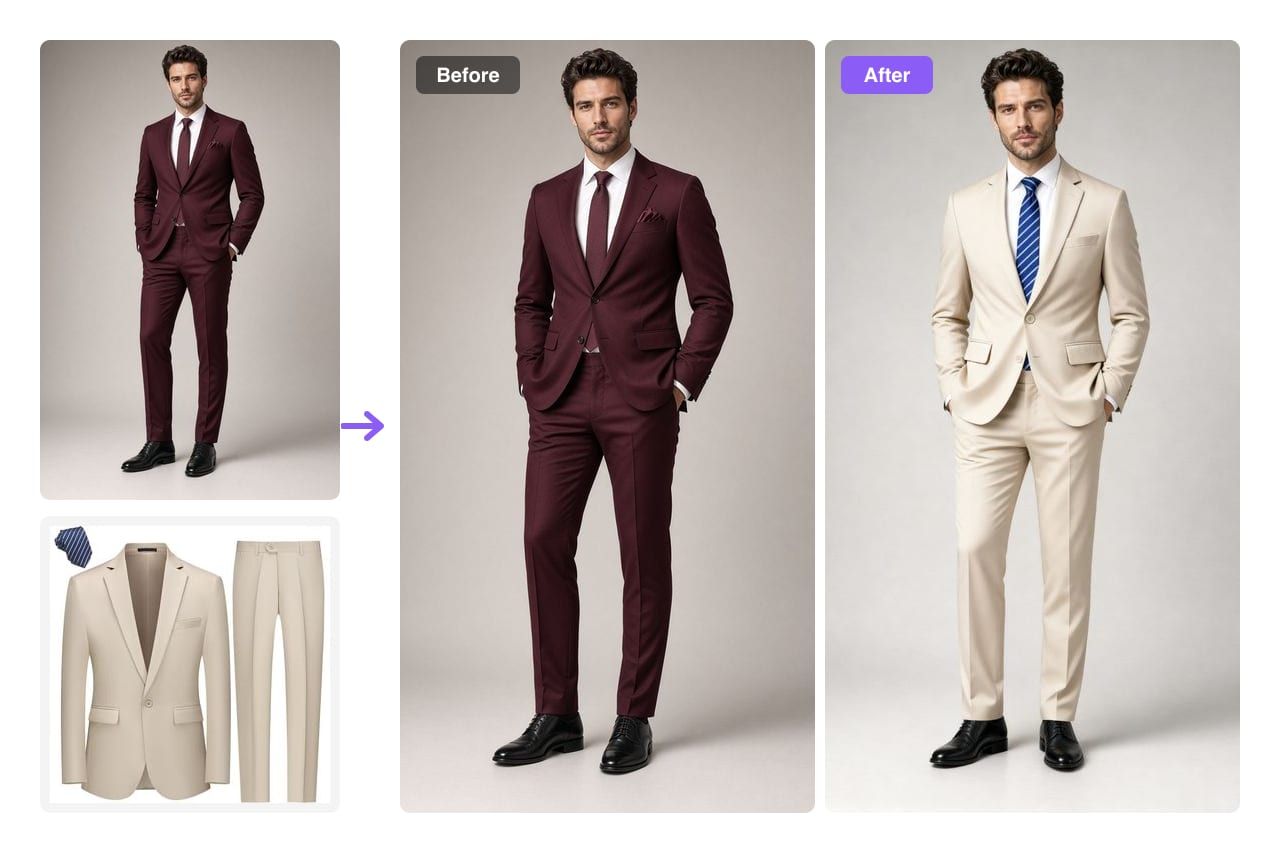
Swapping the clothes in a photo no longer means opening Photoshop. An AI clothes changer takes a person photo and a garment, then re-renders the outfit in place while the face, pose, and background stay exactly as they were. No layers to stack, no mask to draw, no retouching skill required.
That matters because Photoshop is usually the first answer people hear, and it is a capable tool — just a slow one to learn. This guide walks through the AI route first, then lines it up against Photoshop and Canva so you can decide which one fits your workflow.
Last updated: October 14, 2026 · ~6 min read
Same person, same face and pose — only the outfit moves.
How an AI outfit swap works
An AI clothes changer handles the selecting and re-rendering for you, so the workflow is simply upload → attach → download.
- Add your person photo. A sharp, front-facing shot works best, with the current outfit visible from shoulders to hips and soft, even light.
- Attach a garment. Send a flat-lay or on-model reference for a precise match; in Pro mode you also describe the styling in words. Choose Preview for a quick single-outfit result, or Studio when fine fabric and pattern detail matter.
- Review and download. The person, pose, and background stay put while the clothing is rebuilt. Not the look you wanted? Rerun it with a different piece — the original is never lost.
With Studio you can produce up to four variations in a single run for the same price, which helps when you are weighing a few similar pieces against each other. For a full look rather than one piece, use the AI clothes swap tool.
Where this fits: refreshing a headshot, checking an outfit before you buy it, or producing consistent product images for a small shop.
AI compared with manual editing
Reaching for Photoshop first is understandable — it can do the job. The real question is whether it should, for the job you actually have:
- AI clothes changer — a few seconds to about a minute per outfit. No editing skill needed. Best for fast previews, social posts, and small-shop product shots.
- Adobe Photoshop — roughly a quarter to half an hour per change once you know the tool. Needs masking, blending, and colour work. Best for pixel-level commercial retouching.
- Canva / Picsart — around ten to twenty minutes. Light skill. Fine for quick recolours and overlays.
If your goal is simply to see a different outfit on the photo, the AI route gets you there far faster. Where you need full manual control over every pixel, Photoshop still wins.
Recolouring a single garment
Sometimes the only change you want is colour — the same dress in a different shade. Lock the rest of the frame and move one piece; on AI Clothes Changer that is an ordinary generation: send the person photo plus a reference for the new colour.
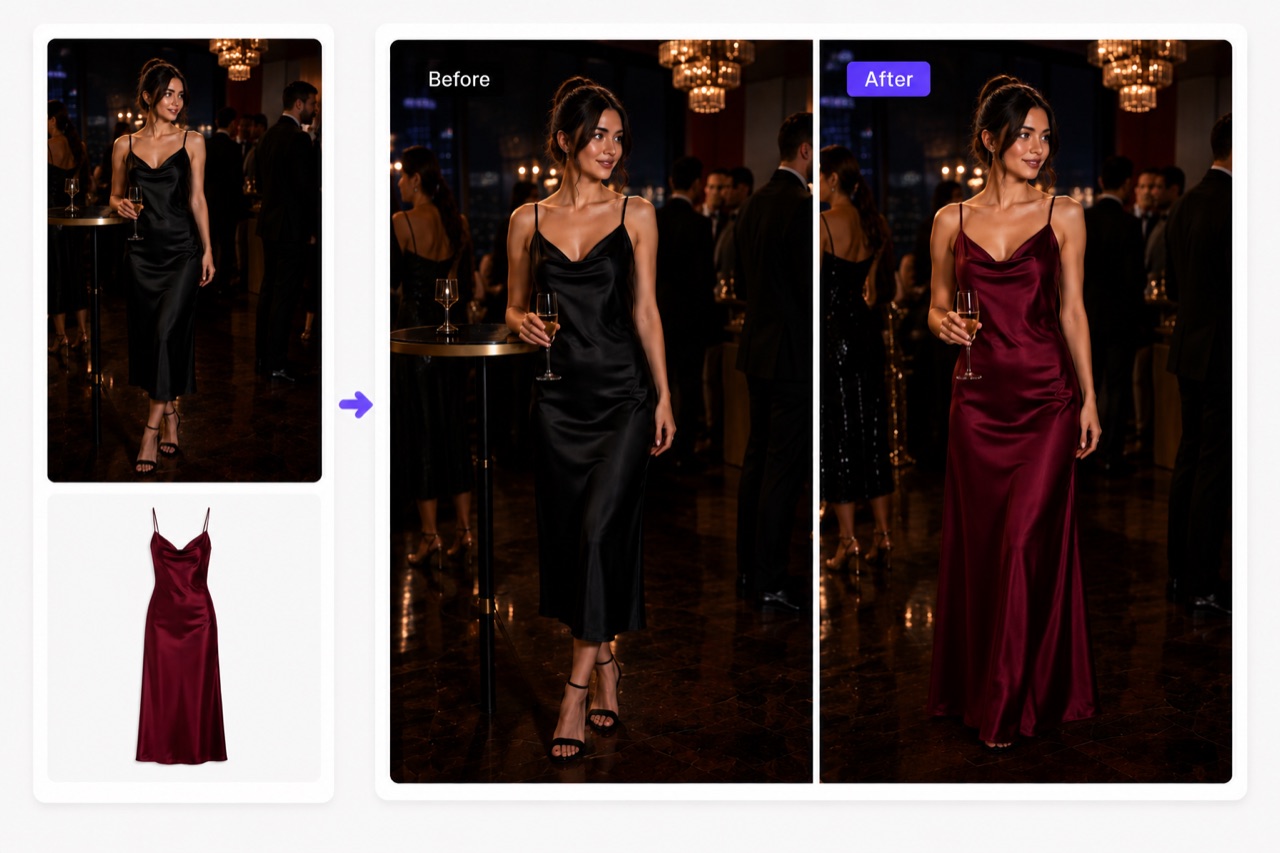 Recolour one piece without touching the face, pose, or background.
When the face or background shifts
The complaint that comes up most often with photo outfit edits is the face, pose, or background drifting. Three habits head off nearly every case:
- Start from a sharper source. Blur and low resolution leave the model guessing, so a crisp, well-lit original is the biggest single upgrade you can make.
- Keep the pose uncomplicated. Crossed arms, a heavy crop, or a subject half-hidden behind an object all make the edit harder. A front-facing shot with the clothing visible tends to work best.
- Talk about the clothes, not the person. Say what the garment should be and let the tool hold the identity. A good AI clothes changer keeps the face and pose while only the outfit moves.
If a result still looks off, run it again — output varies from attempt to attempt, and the second pass is often the one you keep.
Frequently asked questions
How does an AI clothes changer swap an outfit in a photo?
You hand it two images — a person and a garment — and it rebuilds the clothing in place. The face, pose, and background stay fixed, so the result reads as the same person in a new outfit. It removes the manual selecting, masking, and blending you would otherwise do by hand.
Is there a free way to change clothes in a photo?
Yes. New accounts start with free credits and no card on file, so you can run a first swap before paying anything. There is nothing to download — the editor runs in your browser on desktop and mobile.
What do Preview and Studio cost per generation?
Preview spends 10 credits per generation (one person photo plus one garment, single result). Studio spends 20 credits, renders sharper garment detail, and returns up to 4 variations in one run at the same price.
Why did the face or background change in my result?
It should not. An outfit edit is built to hold the person, pose, and background fixed and move only the clothing. If the face drifts, use a sharper, front-facing photo, simplify the pose, and talk about the garment rather than the person.
What happens to my photos when I upload them?
Personal photos deserve a quick check first. Uploads are encrypted in transit and at rest, used only to produce your result, and never used to train public models — and you can delete any generation and its generated images from your account at any time.
Related guides
- AI clothes changer — the main editor for swapping the outfit in a photo.
- Try the AI clothes changer → — upload a photo and swap the outfit in about a minute.
- AI Clothes Swap: restyle a whole outfit in one request
- AI Dress Changer: change any dress online
- How to virtually try on clothes online
- AI virtual try-on for Shopify stores
- How to create AI fashion model photos
- Plans and credits
Try it on your own photo
Skip the Photoshop detour. Add a photo and a garment, and see the new outfit on the same person in about a minute — start on the home page.