
AI Virtual Try-On for Shopify Stores
How to produce model and lookbook images for a Shopify catalog without booking a second shoot. A practical workflow, image specs, cost per image, and the accuracy rules worth following.
AI Clothes Changer Editorial Team · Updated October 20, 2026
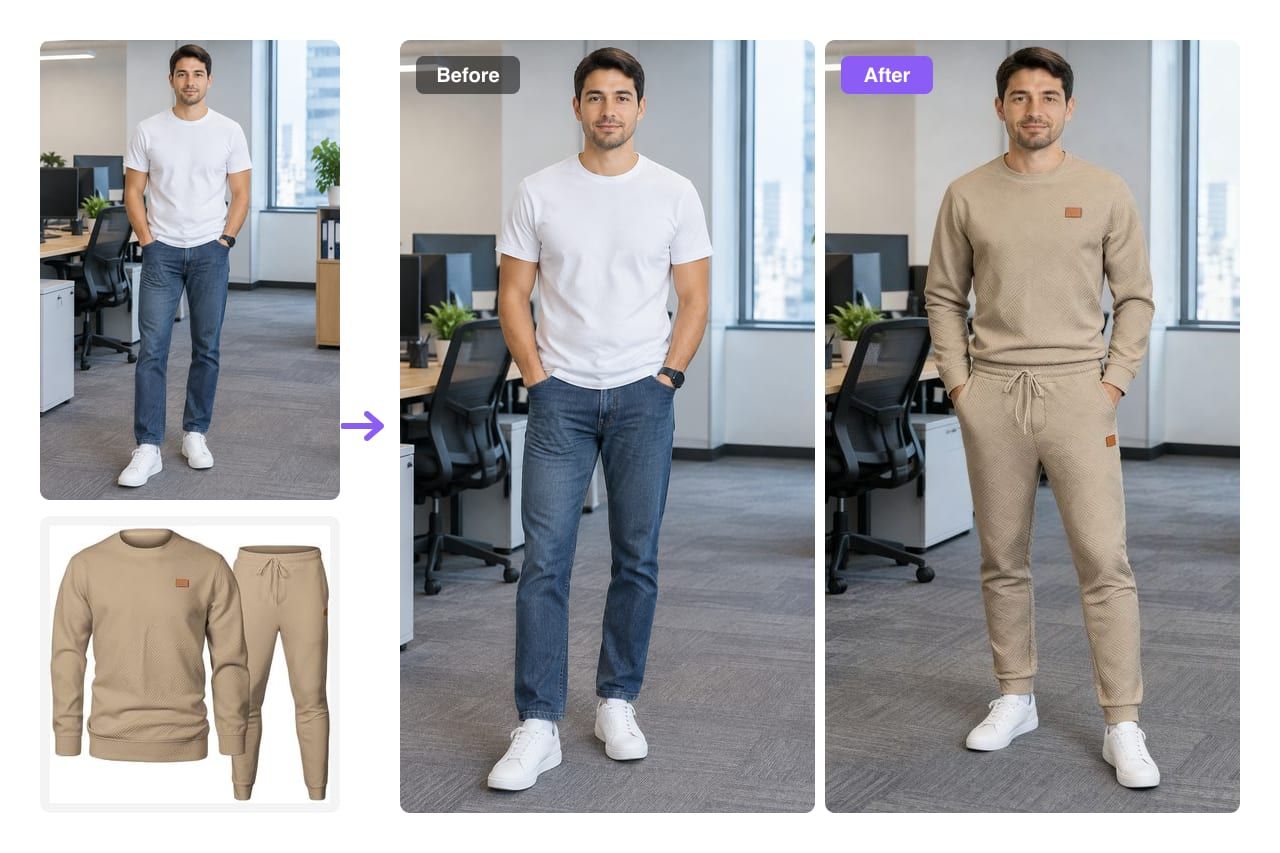
Most Shopify catalogs have the same gap: a handful of products were shot on a model, and the rest sit on a white background as flat lays. The model shots convert better, but rebooking a shoot for every new colorway does not fit a small store's budget.
AI virtual try-on closes that gap without pretending to be a photoshoot. You keep one good base photo of a model, swap the garments per product, and upload the results to Shopify yourself. This guide covers the workflow, the image specs that matter, what it costs per image, and the accuracy rules worth following.
What "AI virtual try-on for Shopify" actually means
AI Clothes Changer is not a Shopify app. It is a browser editor that produces images you upload to Shopify yourself.
Be wary of any workflow that promises a one-click catalog sync. In practice the steps are:
- Generate the image in the browser.
- Download it at full size.
- Upload it to the product or collection in Shopify admin.
That is a manual loop, but it is a short one — and it keeps a human in front of every image before it goes live, which you want anyway.
What you can produce for a catalog
The same editor covers four common catalog jobs:
- PDP model shots for products that only have flat lays.
- Colorway variants of one garment on the same model, same pose, same light.
- Lookbook and collection images that show pieces styled together.
- Campaign variants for ads and email, where the same model appears in several outfits.
What it does not do is invent a new model, change the person's identity, or generate a garment that was never photographed. The input is always a real person photo plus a real garment reference.
What to prepare before you generate
A base model photo. Sharp, evenly lit, with the outfit visible from shoulders to hips. Front-facing or a slight turn works best. If you are shooting specifically for this, take several poses in one session and keep the lighting identical across them.
Garment references. Full, clean product images or on-model shots. A flat lay on a plain surface is ideal. Cropped references force the model to invent the missing part of the garment, and invented hems and collars are exactly what customers notice.
A naming convention. Decide now whether files are named by SKU, color, and angle, or by collection and look. Retrofitting names across 200 images is worse than deciding up front.
A review checklist. Color match, garment length, neckline, print scale, logo placement, and hands. Put it in writing so whoever reviews images applies the same standard every time.
The workflow, step by step
1. Audit the catalog for missing model shots
List the products that only have flat lays, plus the colorways and looks you want to add. Group them by the base photo and lighting setup you plan to reuse — that grouping is what makes the process efficient.
2. Prepare one base model photo per pose and setting
One strong base photo can carry an entire capsule. If you need three poses, shoot three base photos, then reuse each one across every garment in the collection.
3. Prepare clean garment references
Full garment, clean background, accurate color. If the product page image is a compressed thumbnail, find the original.
4. Generate in Studio for four variations
Studio mode costs 20 credits and returns up to four variations per generation. That is the cheapest way to compare colorways, or to pick the frame where the garment folds and lighting read most naturally.
For products where you want to describe the styling in words, use Pro at 20 credits for one prompt-guided image. Preview at 10 credits is the quick check before committing to a full run.
5. Review every image before it reaches the store
Check the four things that cause returns: color, length, construction details, and print placement. If the collar shape changed or the hem sits at the wrong point, regenerate. A slightly softer image is a smaller problem than a product photo that misrepresents the item.
6. Export, name, and upload to Shopify
Generate each image with the virtual try-on clothes tool, download it at full size, then upload it through Shopify admin. Shopify accepts JPEG, PNG, and WebP and recommends square, high-resolution product images — check the current limits in Shopify's help center before a bulk upload, since specs change.
Keep the original product photo in the gallery too. A flat lay next to a model shot answers different questions, and the pair tends to convert better than either alone.
Keeping a catalog visually consistent
Consistency is what separates a professional catalog from a folder of generated images. Three rules do most of the work:
- One base photo per collection. Same face, same pose, same background across every product page in a capsule.
- One lighting setup. Do not mix a window-lit base photo with a studio-lit garment reference; the mismatch is what makes an edit look pasted on.
- One crop ratio. Decide on square or 4:5 and apply it everywhere, including collection tiles and ads.
If a garment reference is shot under very different light, expect to regenerate more often. It is usually faster to find a better reference than to fight a bad one.
Accuracy and disclosure
Generated images are still product images, and the usual rules apply: the item shown must match the item sold. AI makes it easy to produce a beautiful image of a garment that differs from the physical product in color or detail, and that is a returns and trust problem, not a marketing win.
Two practical safeguards:
- Review against the physical sample, not against another generated image.
- Follow current disclosure rules for AI-generated marketing imagery in the markets you sell to, and Shopify's own product image policies. Requirements vary by country and are evolving.
What it costs per image
Studio returns up to four images per 20-credit generation, so the effective cost per image depends on how many variations you actually use:
| Plan | Monthly price | Credits | Studio generations | Max images | Approx. cost per image |
|---|---|---|---|---|---|
| Starter | $9.99 | 400 | 20 | 80 | ~$0.12 |
| Plus | $29.99 | 1,200 | 60 | 240 | ~$0.12 |
| Pro | $59.99 | 2,800 | 140 | 560 | ~$0.11 |
Preview is cheaper per generation but produces one image: 400 credits cover 40 Preview images, or about $0.25 each on Starter. For catalog work, Studio's four variations are usually the better trade. Full details are on the pricing page.
Frequently asked questions
Is there a Shopify app for AI Clothes Changer?
No. The editor runs in the browser and produces image files. You download the results and upload them to Shopify through the admin, the same way you would add a photo from a shoot.
Can I use the images in my Shopify product pages?
Paid plans and purchased credit packs include a commercial use license for the images you generate. You remain responsible for making sure each image accurately represents the product being sold.
How much does it cost per product image?
Studio costs 20 credits and can return up to four variations. On Starter at $9.99 per month, 400 credits cover 20 Studio generations, or up to 80 images — roughly $0.12 per image when all four variations are used.
Do I need to photograph a model first?
Yes. The tool restyles clothing on an existing person photo; it does not invent a model identity. One good base photo, shot once, can carry a large part of a catalog.
Will the generated garment match my product exactly?
It matches what the reference shows. Color, print scale, and construction details can drift, especially with cropped references or unusual fabrics, so every image needs a human review before publishing.
Can I use the same model across a whole collection?
Yes, and that is the practical way to keep a catalog consistent. Reuse the same base photo for every garment in a capsule so the face, pose, and lighting stay identical between product pages.
Related guides
- AI clothes changer — the main editor for swapping the outfit in a photo.
- Generate your first catalog image → — upload a base photo and a garment, and get up to four variations.
- How to create AI fashion model photos
- How to virtually try on clothes online
- AI Clothes Swap: restyle a whole outfit in one request
- Plans and credits